First, try it all.
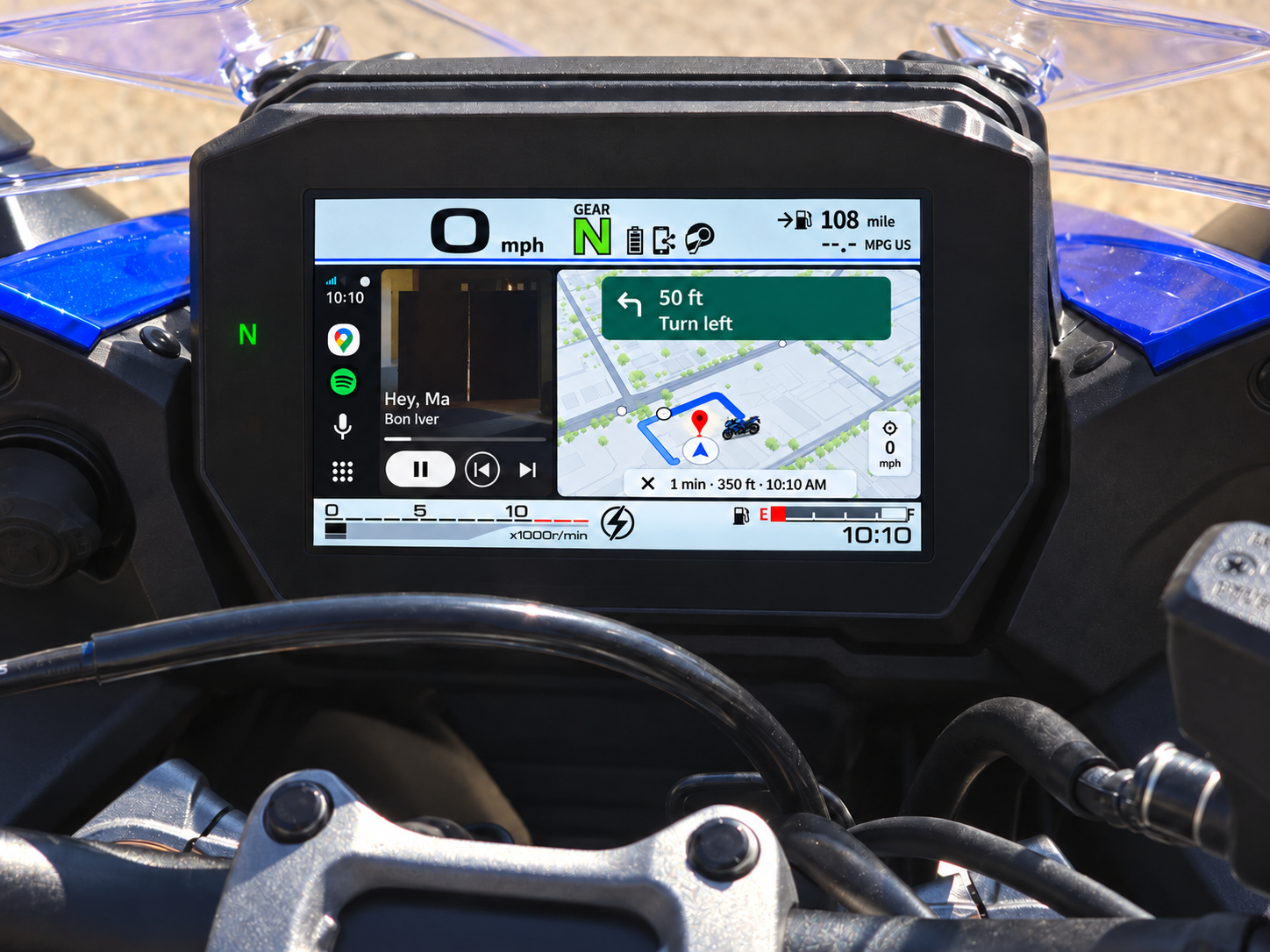
Android Auto and voice assistance on your compatible factory TFT, plus SmartGT Home and notes.
7-DAY FULL TRIAL


YOUR BIKE. YOUR SCREEN. YOUR SMARTGT.
Maps, music and your phone’s assistant, operated through your bike’s existing handlebar controls. No extra display to mount.
Android 12+ · Factory mySPIN equipment
7 days of full functionality. Free version after.
02 / YOUR RIDE. YOUR CALL.
Keep your own Home screen on the TFT. Call on your phone’s AI assistant when you want directions, music or an answer.
Hold Left on SmartGT Home. Choose Voice Assistant or Voice Note for this hold in the app.
Voice assistance needs Android Auto running in the background, a compatible headset and voice setup.
A LITTLE HELP, WHEN YOU WANT IT
“Take me to the nearest petrol station.”
“Play my riding playlist.”
The idea that came on a quiet road. Where you parked. The name of the rider you just met.
Record a voice note while it’s fresh. Find it on your phone after the ride.
03 / YOUR BIKE, MADE YOURS
Check the fit. Then picture SmartGT Home on the motorcycle you ride.
 SUZUKI
GT / GT+2022 onward
GX / GX+2024 onward
Compatible factory mySPIN equipment required.
Android 12 or newer
Android Auto and Google services
Confirm your motorcycle has the compatible factory mySPIN system. Select your exact model in SmartGT and complete setup while parked.
Interactive Home illustration · Paint colors are approximate.
Choose your bike artwork and color, or add your own photo in the app. Keep your background still or add motion.
04 / TAKE IT FOR A RIDE
7 days with full SmartGT functionality. After the trial, the app returns to the free version unless you choose paid access.
Android Auto and voice assistance on your compatible factory TFT, plus SmartGT Home and notes.
7-DAY FULL TRIALYour personalized Home, notes and phone Preview remain available after the trial.
FREE AFTER THE TRIALChoose paid access to continue Android Auto and assistant use on the motorcycle.
OPTIONAL PAID ACCESSPrice and purchase terms are awaiting final approval.
05 / READY FOR YOUR NEXT RIDE
Install SmartGT and follow guided setup. Enable Android Auto developer mode and its head unit server.
Choose your exact model and motorcycle TFT in SmartGT. Open it through your bike’s mySPIN menu.
Set up your Home screen and button actions. Finish your first connection while parked.
No extra display or dongle is required for a supported setup. SmartGT uses your Android phone and a compatible factory TFT.
Audio and voice depend on your phone, headset and how they’re connected to the phone or motorcycle. Follow the setup guide for your combination.
Your SmartGT notes stay on your phone, ready to revisit after your ride.
Some phones limit apps in the background. Check the settings for your phone.
Email smartgt.support@gmail.com with your motorcycle model and year, phone model, Android version, app version and what happened.
Phone battery and background settings. Choose your brand for a short checklist.
If SmartGT stops when your screen locks, disconnects after a few minutes, or does not reconnect, your phone's battery settings are worth checking.
Menu names vary by phone, software version and country. These steps are based on published guidance and have not been tested on every phone. They may help with background restrictions, but they are not a fix for every connection problem.
SmartGT's Android Auto features require Google services and a compatible Android Auto installation. Huawei phones without those services cannot use those features. Battery settings will not add Android Auto or make a phone that cannot run Android apps compatible.
Back to phone brandsAfter changing settings, try SmartGT again while parked. If it still disconnects or stops, email support with your phone model, Android version, SmartGT version and what happens when the screen locks. A photo of the battery settings can help if the menu looks different.